Your first Shiny app
Create app directory and file
examples/basic-app/hello-world/app.py
from shiny import App, ui

app_ui = ui.page_fluid(
    "Hello, world!"
)

def server(input, output, session):
    ...

app = App(app_ui, server)
Running and stopping
Run app
- Click ‘Run Shiny App’ button on VS Code that comes with Shiny extension for VS Code
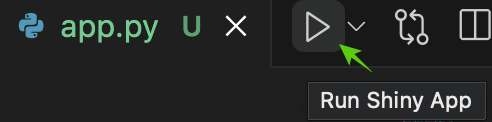
- In terminal, like zsh, type
shiny run {filename}where{filename}should be replaced with python filename with its path, e.g.shiny run examples/basic-app/hello-world/app.py
Stop the app
In terminal that Shiny is running, press Ctrl+C
Adding UI controls
UI controls are included in ui subpackage.
ui.input_*: craete input controls that users can provide inputsui.output_*: create output containers that computation results can be rendered
Let’s create similar app to example in Mastering Shiny book.
examples/basic-app/adding-ui/app.py
from shiny import App, ui
from pydataset import data

app_ui = ui.page_fluid(
    ui.input_select("dataset", label="Dataset", choices=list(data()['dataset_id'])),
    ui.output_text_verbatim("summary"),
    ui.output_table("table")
)

def server(input, output, session):
    ...

app = App(app_ui, server)I used pydataset package in Python instead of package:datasets in R, so the actual app looks different from the book example.
Here, in ui.input_select(), please note that I used choices=list(data()['dataset_id']) instead of choices=data()['dataset_id']. If the argument include key/index, like dictionary or pandas.Sereis, the control will use the key/index is used as input value in server logic. To use element value as input value instead of pandas Series index, I convert pandas Series into list when passing it as choices argument of ui.input_select().
Adding behavior
Adding behavior requires including server logics. It requires functions in render subpackage, so I additionally imported render.
examples/basic-app/adding-behavior/app.py
from shiny import App, ui, render
from pydataset import data

app_ui = ui.page_fluid(
    ui.input_select("dataset", label="Dataset", choices=list(data()['dataset_id'])),
    ui.output_text_verbatim("summary"),
    ui.output_table("table")
)

def server(input, output, session):
    @output
    @render.text
    def summary():
        dataset = data(input.dataset())
        return dataset.describe()

    @output
    @render.table
    def table():
        dataset = data(input.dataset())
        return dataset

app = App(app_ui, server)
In this example, inside server() function, there are two functions that have same names to output controls in UI, "summary" and "table".
Shiny for Python uses decorators @render.* and @output. The render decorator should be chosen to be consistent with output control type in UI.
In case you need to name a server-side function differently from output control ID, you can use id argument in @output decorator like below:
    @output(id="summary")
    @render.text
    def print_summary():
        dataset = data(input.dataset())
return dataset.describe()@output decorator is no longer required since v0.6.0 released on 2023-10-30, unless you need to set specific output option (e.g. id). Please see more details: Change Log for Shiny for Python.
The server function can be simplified as follows:
def server(input, output, session):
    @render.text
    def summary():
        dataset = data(input.dataset())
        return dataset.describe()

    @render.table
    def table():
        dataset = data(input.dataset())
        return dataset
Reducing duplication with reactive expressions
Reactive expression requires reactive subpackage, so I additionally imported reactive.
examples/basic-app/reactive-expression/app.py
from shiny import App, ui, render, reactive
from pydataset import data

app_ui = ui.page_fluid(
    ui.input_select("dataset", label="Dataset", choices=list(data()['dataset_id'])),
    ui.output_text_verbatim("summary"),
    ui.output_table("table")
)

def server(input, output, session):
    # Create a reactive expression
    @reactive.calc
    def dataset():
        return data(input.dataset())

    @output
    @render.text
    def summary():
        return dataset().describe()

    @output
    @render.table
    def table():
        return dataset()

app = App(app_ui, server)
@reactive.* decorators are used for the reactive programming.
@reactive.calcis for “lazy and cached” computation that the computation is executed only when it is actually needed.@reactive.effectis for “eager and forgetful” computation that the computation is executed as soon as possible.
In original Shiny for Python release, the reactive functions used capitalized names, i.e. @reactive.Calc and @reactive.Effect. The lowercase names @reactive.calc and @reactive.effect were introduced with version 0.6.1 release on 2023-12-18. See Change Log
Name of reactive expression should be unique within server function. In other words, it should be different from not only other reactive expressions but also any output names. In the example above, you cannot name reactive expression table() instead of dataset() because output named "table" and its corresponding server logic table() already exist.
Exercises
- Create an app that greets the user by name.
solutions/basic-app/greeting/app.py
from shiny import App, ui, render

app_ui = ui.page_fluid(
    ui.input_text("name", "What's your name?", value=None),
    ui.output_text("greeting"),
)

def server(input, output, session):
    @output
    @render.text
    def greeting():
        return f"Hello {input.name()}"

app = App(app_ui, server)- Suppose your friend wants to design an app that allows the user to set a number (x) between 1 and 50, and displays the result of multiplying this number by 5.
solutions/basic-app/multiplying/app.py
from shiny import App, ui, render

app_ui = ui.page_fluid(
    ui.input_slider("x", label="If x is", min=1, max=50, value=30),
    "then x times 5 is",
    ui.output_text("product"),
)

def server(input, output, session):
    @output
    @render.text
    def product():
        return input.x() * 5

app = App(app_ui, server)- Extend the app from the previous exercise to allow the user to set the value of the multiplier, y, so that the app yields the value of x * y.
solutions/basic-app/multiplying-by-y/app.py
from shiny import App, ui, render

app_ui = ui.page_fluid(
    ui.input_slider("x", label="If x is", min=1, max=50, value=30),
    ui.input_slider("y", label="and y is", min=1, max=50, value=5),
    "then, x times y is",
    ui.output_text("product"),
)

def server(input, output, session):
    @output
    @render.text
    def product():
        return input.x() * input.y()

app = App(app_ui, server)- Add some additional functionality and reduce the amount of duplicated code in the app by using a reactive expression.
solutions/basic-app/reactive-expression/app.py
from shiny import App, ui, render, reactive

app_ui = ui.page_fluid(
    ui.input_slider("x", label="If x is", min=1, max=50, value=30),
    ui.input_slider("y", label="and y is", min=1, max=50, value=5),
    "then, (x * y) is", ui.output_text("product"),
    "and, (x * y) + 5 is", ui.output_text("product_plus5"),
    "and (x * y) + 10 is", ui.output_text("product_plus10"),
)

def server(input, output, session):
    @reactive.calc
    def x_times_y():
        return input.x() * input.y()

    @output
    @render.text
    def product():
        return x_times_y()

    @output
    @render.text
    def product_plus5():
        return x_times_y() + 5

    @output
    @render.text
    def product_plus10():
        return x_times_y() + 10

app = App(app_ui, server)- Select a dataset from a package and the app prints out a summary and plot of the data.
solutions/basic-app/plotting/app.py
from shiny import App, ui, render, reactive
from pydataset import data
import seaborn as sns

app_ui = ui.page_fluid(
    ui.input_select("dataset", label="Dataset", choices=list(data()['dataset_id'])),
    ui.output_text_verbatim("summary"),
    ui.output_plot("plot")
)

def server(input, output, session):
    # Create a reactive expression
    @reactive.calc
    def dataset():
        return data(input.dataset())

    @output
    @render.text
    def summary():
        return dataset().describe()

    @output
    @render.plot
    def plot():
        return sns.pairplot(dataset())

app = App(app_ui, server)I used seaborn package to visualize data frame with pairwise scatter plot, which is similar to the book example in R.